 LotsSocial
ChatGPT can schedule a LinkedIn post when you connect it to a publishing tool such as LotsSocial. You write or refine the post in ChatGPT, choose your LinkedIn account and a publication time, and ask ChatGPT to schedule it. LotsSocial queues the post and handles publishing; you can ask ChatGPT for its status and the live link later.
ChatGPT by itself does not gain access to your LinkedIn account just because you ask it to post. You need to connect both services and authorize the action.
This walkthrough follows the LotsSocial founder's recorded workflow: connecting LinkedIn from ChatGPT, scheduling a post, then asking whether it was published. It is a tested product workflow, not a promise of reach or leads.
Watch the recorded ChatGPT-to-LinkedIn setup and scheduling demo.
What you need before scheduling
- ChatGPT on the web with access to custom MCP apps. The setting may appear under Plugins or Apps.
- A LotsSocial account. You can sign in or create one during connection.
- A LinkedIn profile you can authorize, or the necessary access to the LinkedIn Page you want to connect.
- Your post, the intended account, and an exact date, time and timezone.
Do you need a paid ChatGPT account? In the founder's manual testing, Free accounts could connect after enabling developer mode, while paid accounts, including Go, could connect without that extra step. OpenAI's published developer-mode documentation describes narrower availability. Menus, permissions and rollout can differ, so check the options in your own account rather than buying a plan solely on this guide's basis.
Connect ChatGPT to LotsSocial
For the current visual instructions, open the ChatGPT connection guide. This article focuses on what to ask after connection and how to tell whether scheduling worked.
You can start by pasting this into ChatGPT:
Read https://lots.social/skill.md and help me connect LotsSocial for you. I want to schedule LinkedIn posts from this chat.
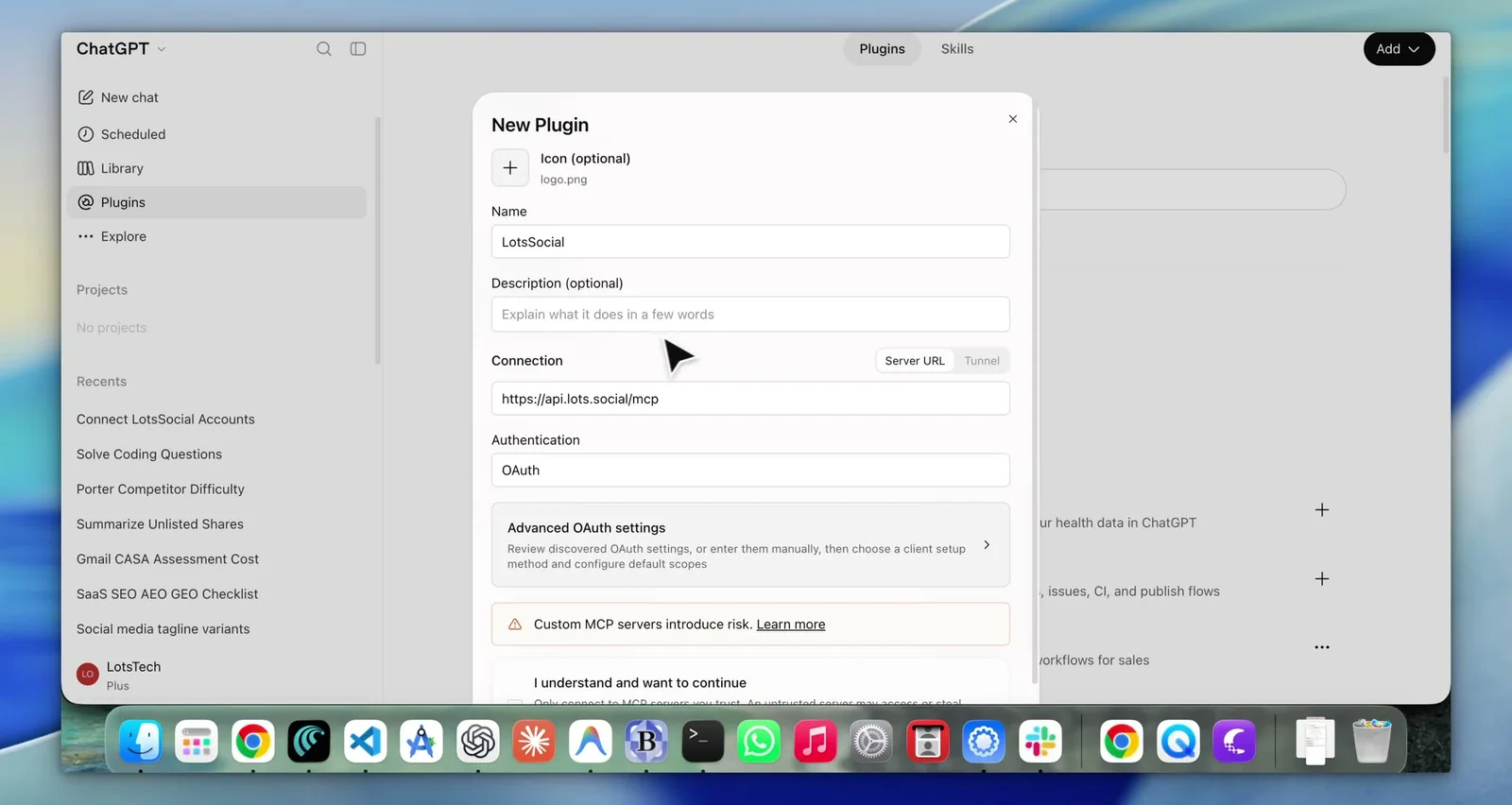
If you configure the connection yourself, add a custom MCP app named LotsSocial, use the server URL below, select OAuth, and complete the sign-in and authorization prompts:
https://api.lots.social/mcp
In the recorded interface, the path is Plugins → Add → Create MCP App. If your interface shows Apps instead, look for its custom-app option. If it is missing, check developer mode or your workspace's app permissions.
Connect the correct LinkedIn account
Once LotsSocial is connected, ask:
List my connected social accounts. I want to schedule a post on my LinkedIn profile. If it is not connected, give me a link to connect it.
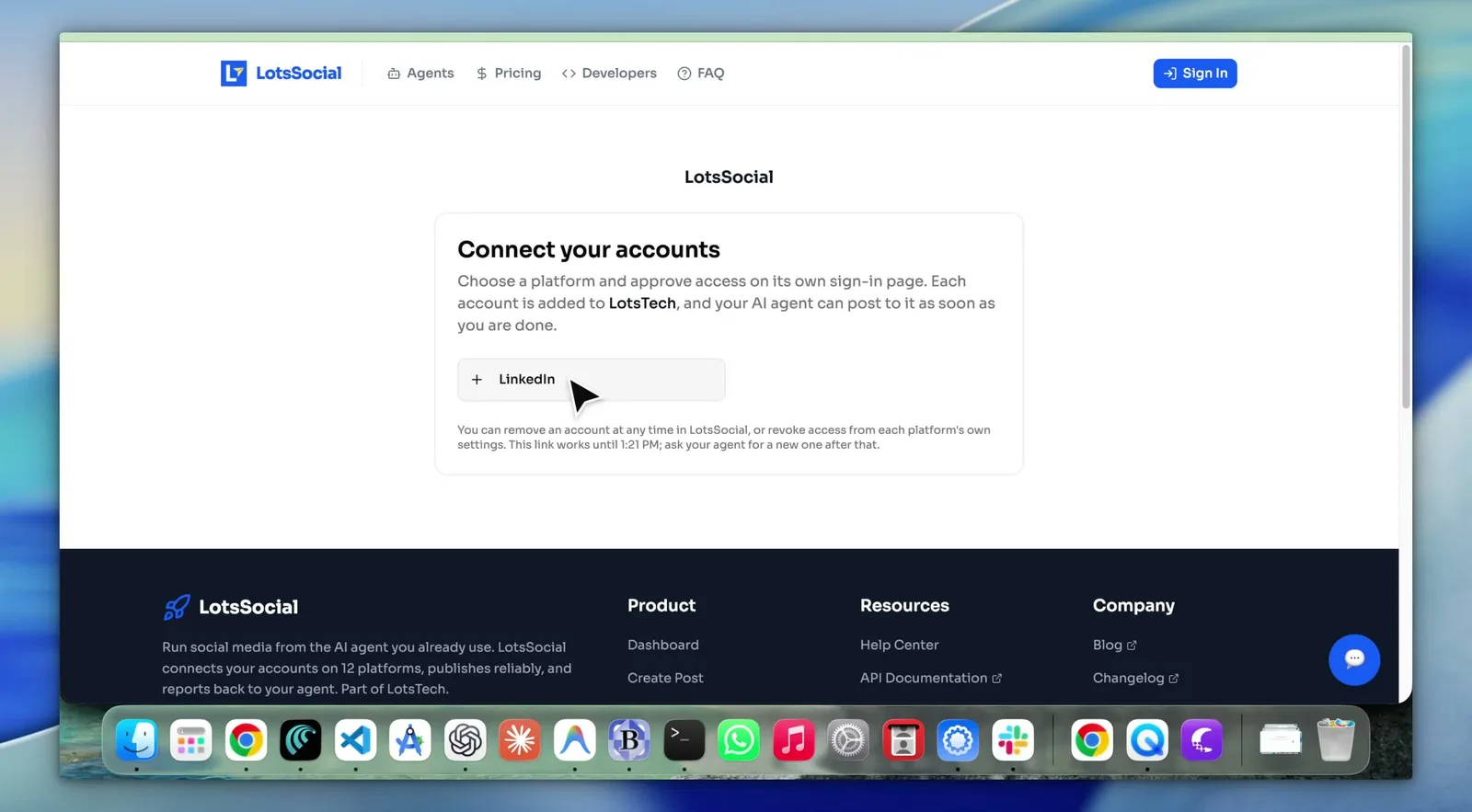
ChatGPT returns a hosted connection link when a connection is needed. Open it and authorize LinkedIn access on LinkedIn's own page. You do not paste your LinkedIn password into the chat. The connection link is valid for one hour; request a new one if it expires.
If you want a company Page, say so explicitly:
I want to post as my LinkedIn company Page, not my personal profile. Show me the connected LinkedIn accounts and their names before we schedule anything.
Choose the account by name. If two accounts have similar names, ask ChatGPT to distinguish them before continuing. A well-written post scheduled to the wrong account is still the wrong result.
Give ChatGPT a scheduling request it can execute
A request such as “post tomorrow morning” leaves room for ambiguity. Use the final caption, account name, date and timezone together.
Here is an example you can adapt; the date is illustrative:
Use this caption exactly as written, including the line breaks. Schedule it on my LinkedIn profile named [account name] for 6 October 2026 at 9:30 AM, Asia/Kolkata. Do not post it to any other account. Return the saved post ID, the destination account, scheduled time with timezone, and status.
[Paste your final caption here.]
If you want ChatGPT to improve the text first, separate writing from scheduling:
Rewrite this announcement for my LinkedIn audience. Keep the product facts unchanged and do not invent customer results. Show me the proposed caption first. Do not schedule it yet.
After reading the result, tell it which version to schedule and when. You can also ask it to save a draft while you decide. A draft is not a scheduled post and will not publish.
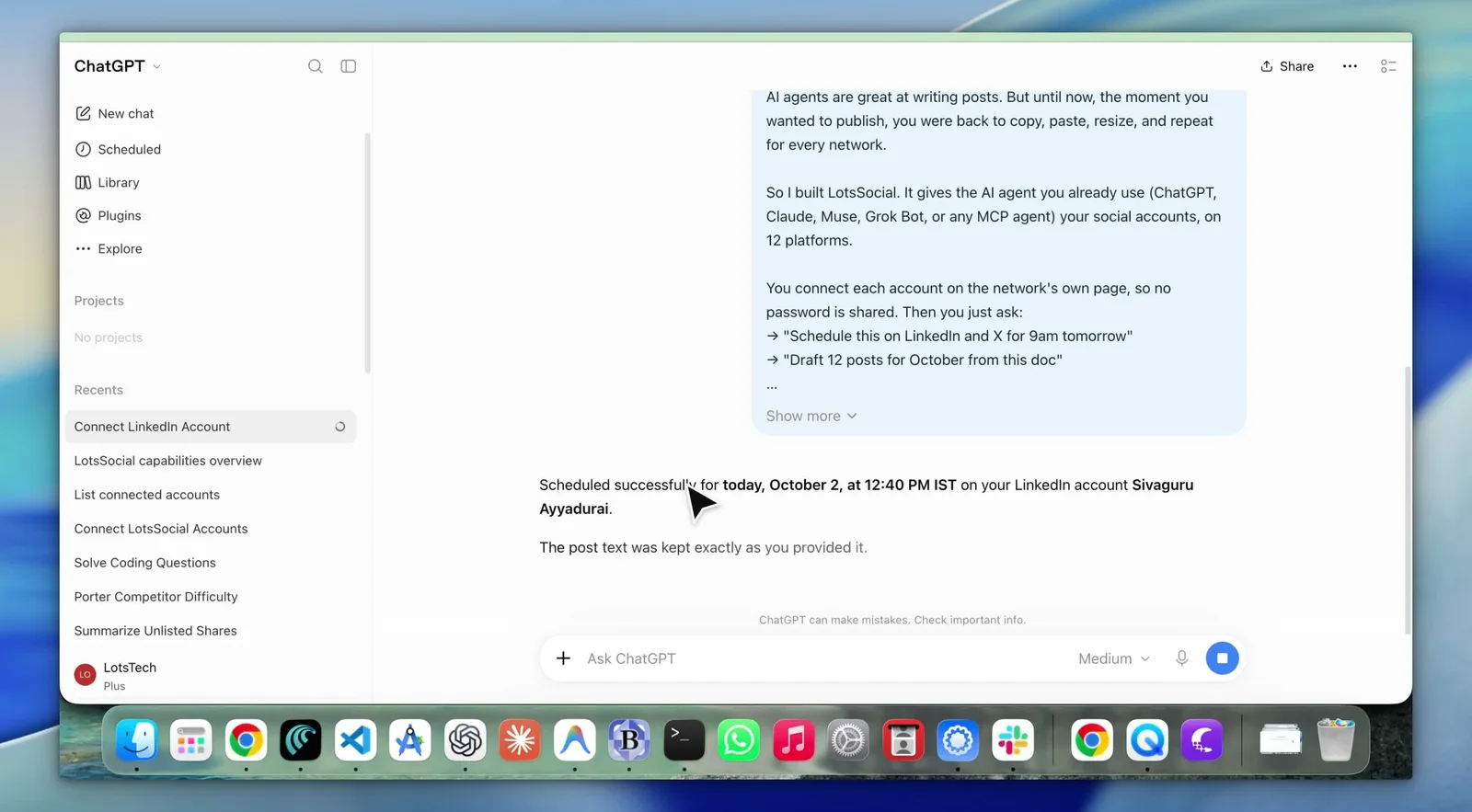
ChatGPT may ask you to confirm a tool action. Review the destination and time before confirming. LotsSocial validates the request and returns a result; if validation fails, ask ChatGPT to explain and fix that issue rather than repeatedly creating the same post.
Check the scheduling result before closing the chat
Look for three things in the result:
- The correct account: your profile or the intended company Page.
- The correct time: date, time and timezone match your request.
- A saved post ID and scheduled status: evidence that the publishing tool accepted the request.
“Scheduled” means the post is waiting for publication. It does not mean the post is already live on LinkedIn. LotsSocial's delivery depends on its queue and the platform response; an exact publication second is not guaranteed.
For a visual check, open your workspace's Posts or Calendar in LotsSocial. The dashboard is optional—you can also ask ChatGPT to retrieve the saved post and read its scheduling details back to you.
Ask whether the post actually published
After its scheduled time, use the post ID from the result:
Check the publishing status of post [post ID]. Did it successfully publish to my LinkedIn account? If yes, return the live LinkedIn link. If it failed or is still processing, explain the returned status. Do not create another copy of the post.
This is the useful final step in the workflow: ChatGPT checks the publishing result instead of assuming that an earlier scheduling confirmation proves success.
A live link lets you inspect the actual LinkedIn post. If the result is pending or processing, check again later. If it failed, use the returned error to decide whether you need to reconnect the account, correct the content or retry the existing post. If the response is ambiguous, check LinkedIn before retrying so you do not accidentally duplicate a post.
Common questions about scheduling LinkedIn posts with ChatGPT
Can ChatGPT post to LinkedIn without a connected tool?
ChatGPT can write your LinkedIn caption without LotsSocial. To execute this scheduling workflow, it needs a connected publishing tool and an authorized LinkedIn account. A caption in the chat is not a published post.
Can I schedule a post on a LinkedIn company Page?
Yes, LotsSocial supports LinkedIn Page connections as well as personal-profile connections. Authorize the account you intend to use and ask ChatGPT to confirm its name before scheduling. Page access depends on your LinkedIn permissions.
Do I need to keep ChatGPT open until publication?
No. Once LotsSocial confirms that the post is scheduled, its publishing queue handles the scheduled work. You can return to ChatGPT later to check the result.
Can I change or cancel a scheduled post?
Ask ChatGPT to retrieve the saved post and change its caption or scheduled time, or cancel it, before publishing starts. Include the post ID so it acts on the existing post. A post that is already processing or published may no longer be editable through that workflow; read the returned status before assuming a change succeeded.
Can I include an image or video?
LotsSocial supports media publishing, subject to LinkedIn's supported formats and limits. Ask ChatGPT to use LotsSocial's media upload and validation workflow and confirm which media belongs to the post. Do not assume that attaching a file in chat automatically uploads it to LotsSocial. The demonstrated workflow here focuses on connection, scheduling and status verification.
What if ChatGPT says it cannot find LotsSocial?
Select or mention LotsSocial in the chat and finish any authorization prompt. Ask it to list your connected accounts. If that fails, check the connection in your ChatGPT app settings and use the returned error to identify the issue. If setup controls are missing, consult the current connection guide and your account or workspace permissions.
Is this free to try?
Yes. Eligible new LotsSocial users receive 5,000 free credits without a card, valid for 90 days. Connected accounts are paid from credits automatically, at $2 per account per month charged daily, and media storage is free. You can also pick a plan for a fixed monthly price, but a subscription isn't required for this workflow. Your ChatGPT plan is separate. See current LotsSocial pricing for the live rates and eligibility details.
Does scheduling through ChatGPT improve LinkedIn reach?
This workflow helps you write, schedule and check posts from the chat you already use. It does not guarantee more views, followers or leads. Evaluate the content and audience response separately from whether the publishing workflow succeeded.
Schedule your first LinkedIn post
Start with one account and one post. Connect LotsSocial, confirm the destination, give ChatGPT an exact date and timezone, and check the published result later.
Connect LotsSocial to ChatGPT, or paste this into your chat:
Read https://lots.social/skill.md and help me connect LotsSocial for you. Then help me schedule one LinkedIn post and check its publishing result.